日本語 / English
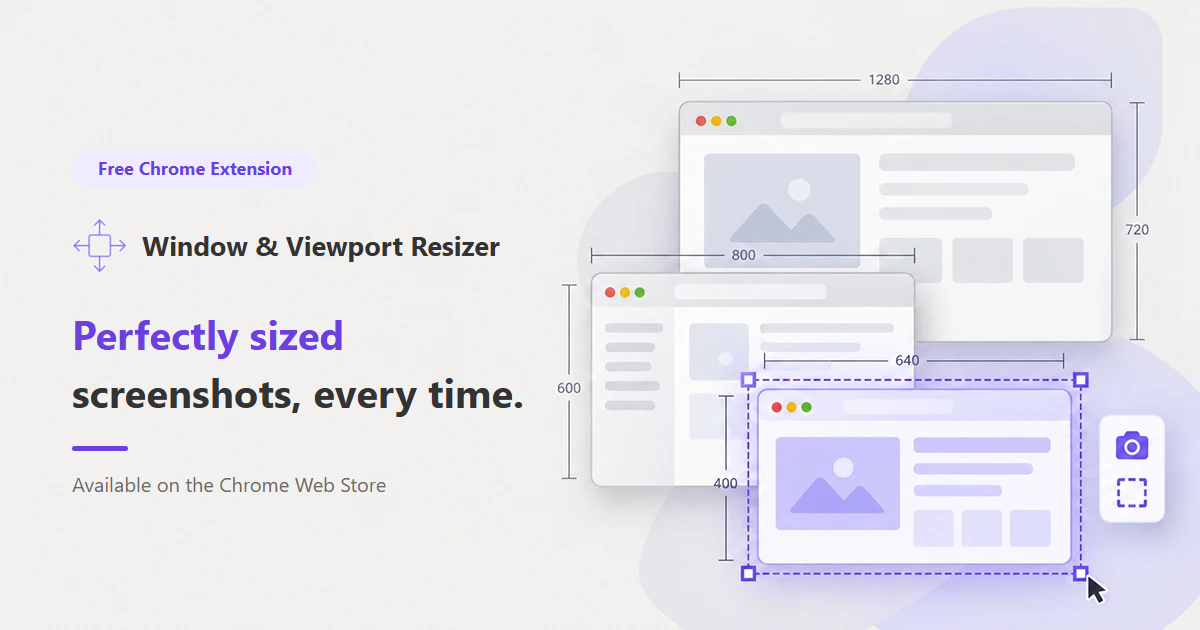
 Window & Viewport Resizer
Perfectly sized
screenshots, every time.
Resize your browser window or viewport to an exact size in one click, then capture the visible area, the full page, or a scrollable area you pick. Made for blog posts, manuals and documentation.
⬇ Add to Chrome — it’s free Opens the Chrome Web Store
Who it’s for
For anyone tired of screenshots in every size but the right one.
 Bloggers who want
consistent screenshots
 Writers of manuals
and how-to guides
 Developers checking
responsive layouts
 Makers preparing
store listing images
What it does
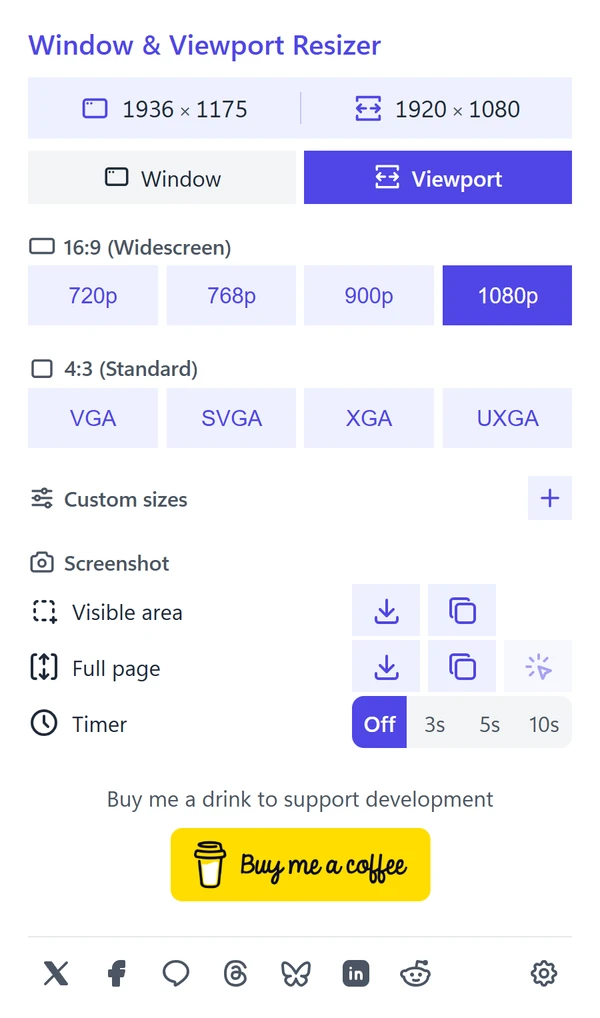
From resizing to capturing and saving, all from one popup.
One-click resizing
Set the whole window, or just the page area (the viewport), to an exact size.
Presets and custom sizes
Common resolutions are built in. Add, edit and delete your own sizes, too.
Visible area or full page
Full-page capture scrolls automatically and stitches everything into one image.
Pages that scroll inside
On pages where only an inner area scrolls, like web app dashboards, the main scrollable area is found automatically and captured to the end.
Pick an area to capture
Click a scrollable area on the page to download or copy just that area.
Save or copy in one click
Download the image, or copy it to the clipboard as PNG and paste it right away. When you download, the popup closes at once and the toolbar icon shows the result.
Window-based vs. viewport-based
Choose which part of the browser gets the exact size.
Window-based
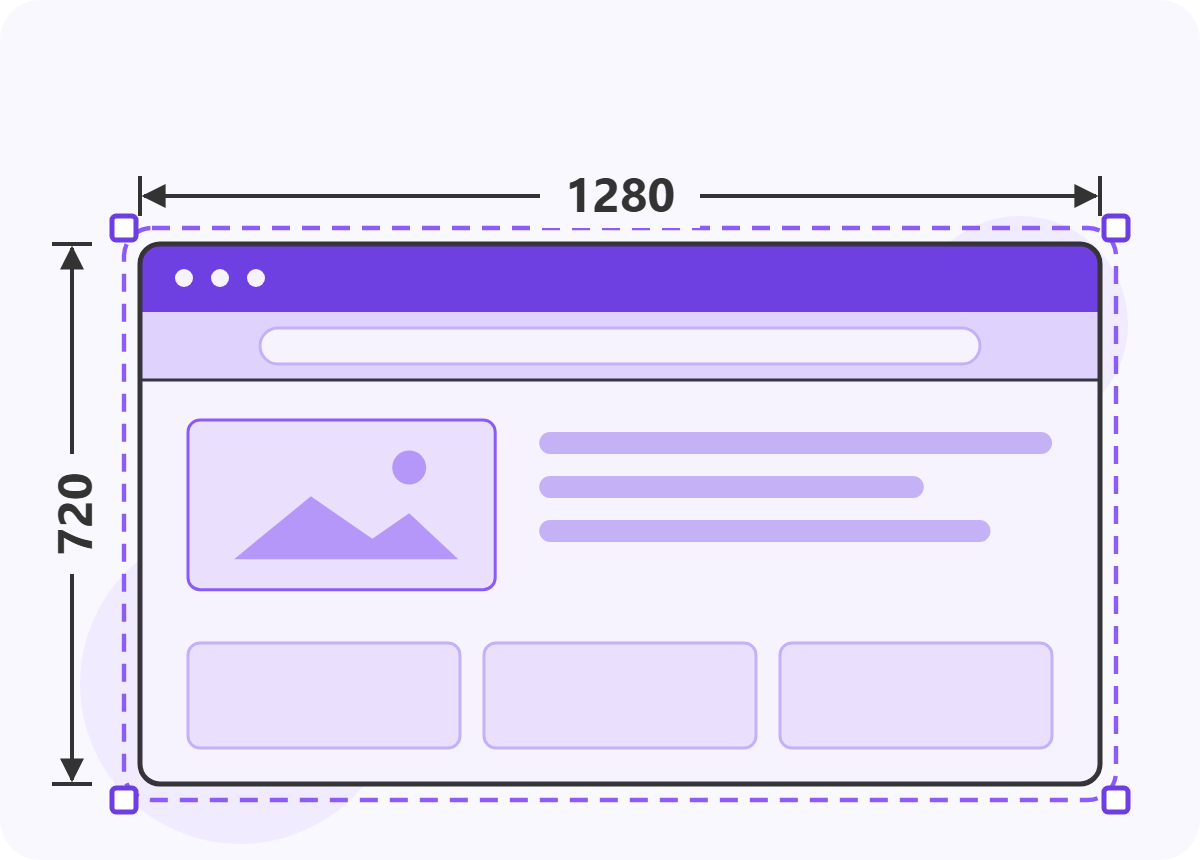
Best for matching the overall look
Resizes the whole window, toolbars included. The page area ends up smaller by the height of the toolbars.
Viewport-based
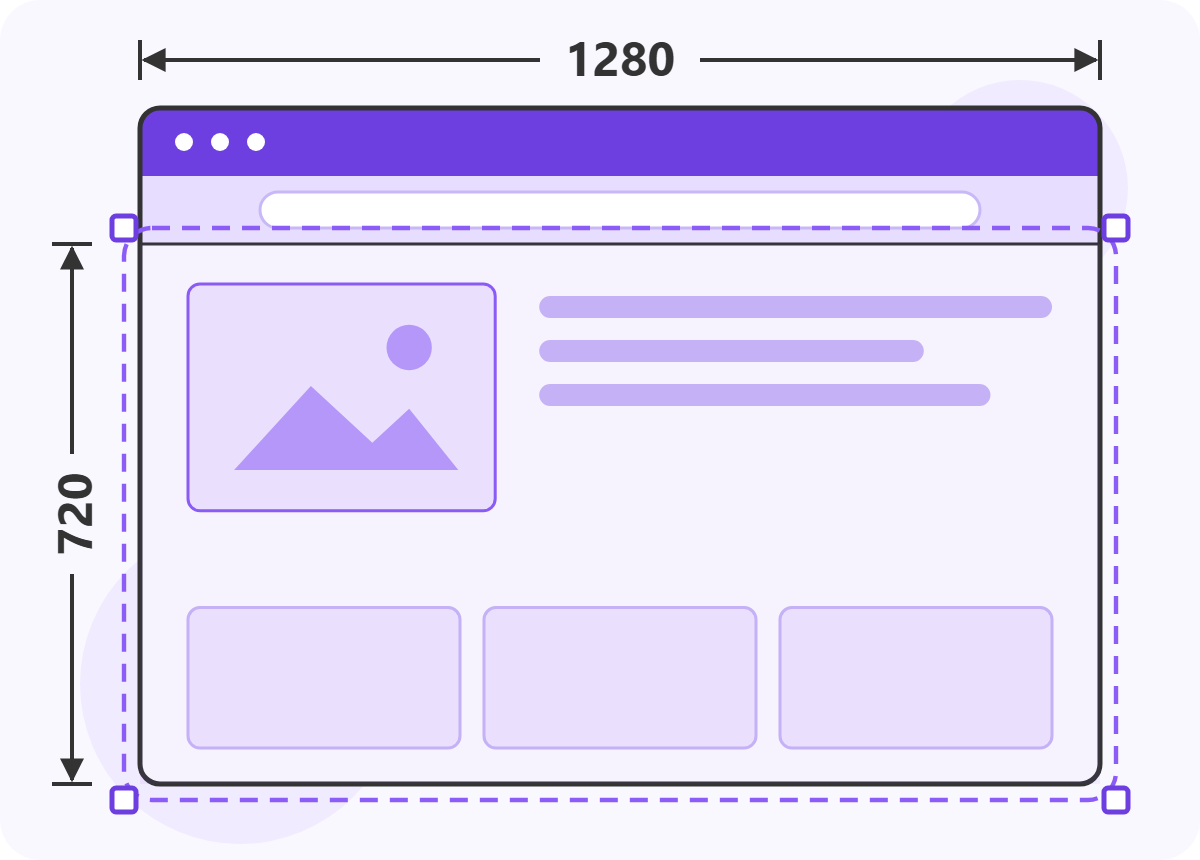
Best for consistent screenshot sizes
Resizes only the area where the page is shown. The window grows by the height of the toolbars.
Built-in presets
The usual resolutions, ready to go.
| Name | Size |
|---|---|
| HD | 1280 × 720 |
| WXGA | 1366 × 768 |
| HD+ | 1600 × 900 |
| FHD | 1920 × 1080 |
| Name | Size |
|---|---|
| VGA | 640 × 480 |
| SVGA | 800 × 600 |
| XGA | 1024 × 768 |
| UXGA | 1600 × 1200 |
You can also save any size you like as a custom size.
The whole page, in one image
Long pages are scrolled and captured automatically. On pages that scroll inside, you can choose whether to include the surrounding frame, such as the header and sidebar.
Get started in 3 steps
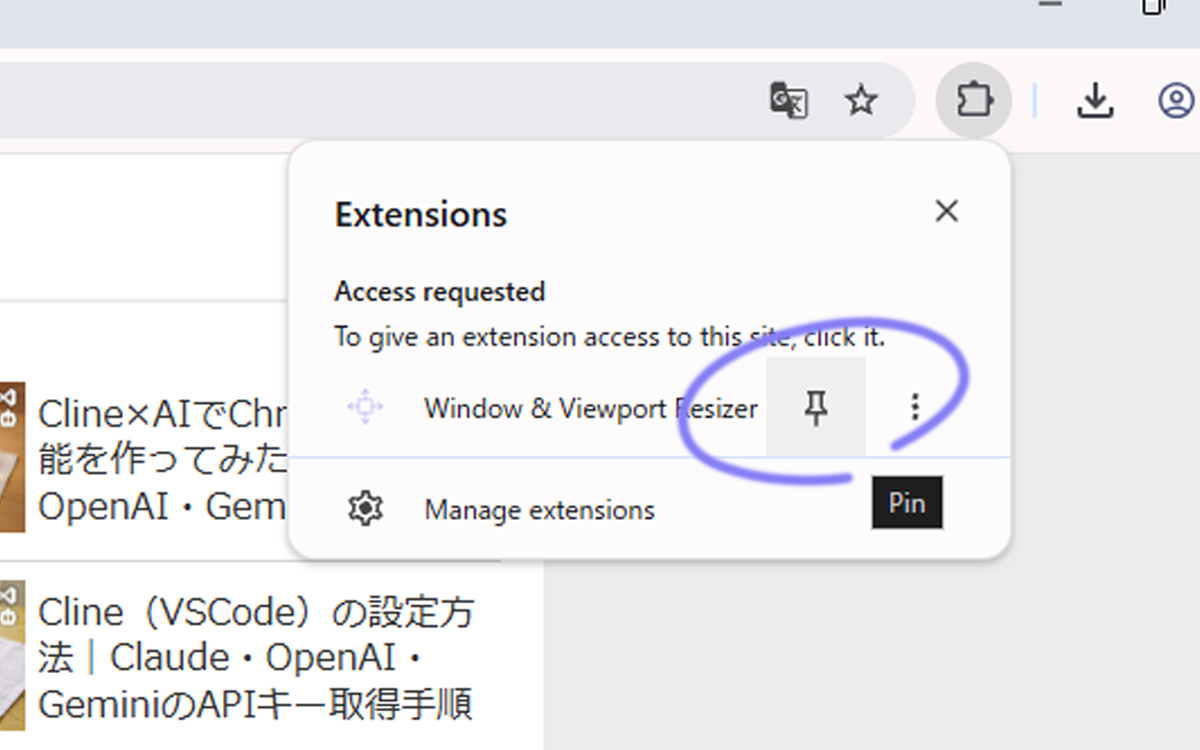
Install
Add it from the Chrome Web Store and pin it to the toolbar.
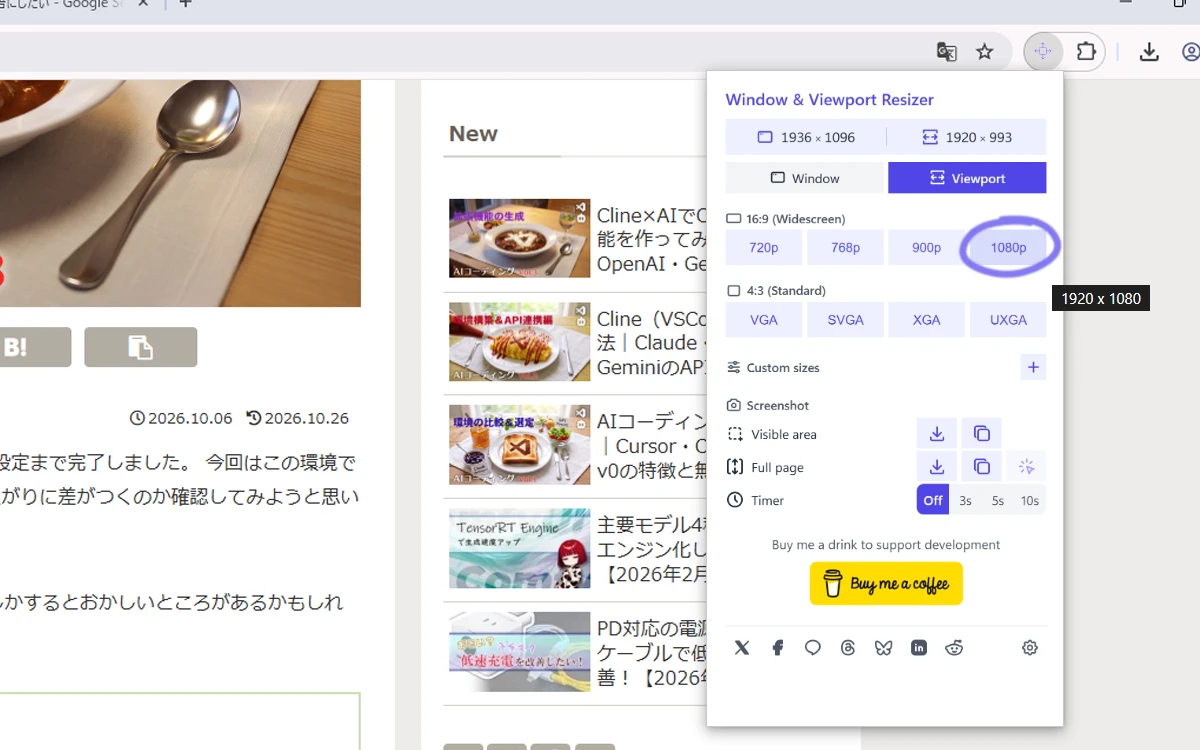
Pick a size
Choose a mode and a size in the popup to resize.
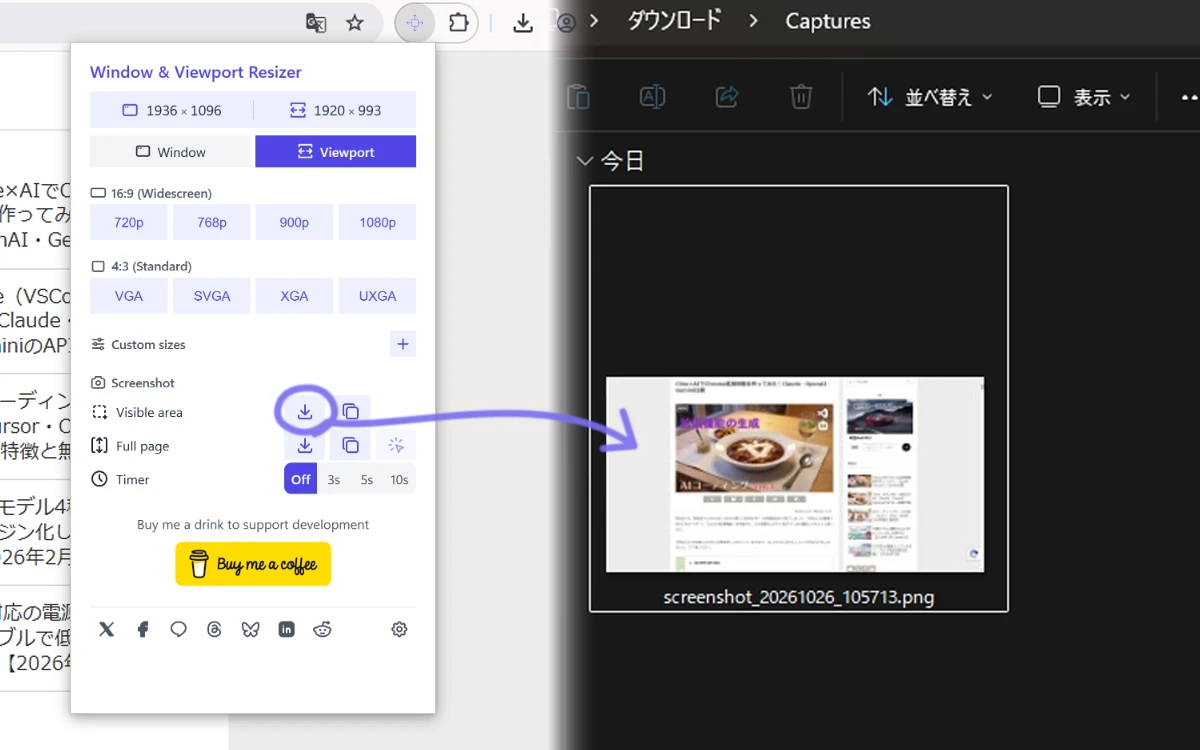
Capture and save
Capture the visible area or the full page, then save or copy it. The toolbar icon shows “OK” when it’s done.
Thoughtful details
- Save as PNG, WebP or JPEG
- Resizes zoomed pages to the size you set without changing the zoom
- Choose whether to include the surrounding frame when capturing a scrollable area
- The toolbar icon shows the capture result
- A 3, 5 or 10 second timer, for capturing menus that open on hover
- Assign your own keyboard shortcuts
- Moves the window automatically so it stays on the screen
- Choose the download folder name
- Remembers your last mode and basis
- Fix small size differences with per-preset offsets
- Choose a light, dark or automatic theme
- English / Japanese, or follow the browser language
Your screenshots and settings never leave your browser
Everything is processed locally, and no user data is collected. Only these four permissions are needed:
activeTabscriptingstoragedownloadsFAQ
It doesn’t work on some pages
Chrome doesn’t allow extensions to resize or capture special pages, such as those starting with chrome:// or the Chrome Web Store.
Can the size be off by a few pixels?
In viewport-based mode, the size you set is the size of the image, even at an OS display scale such as 125%. In window-based mode, OS display scaling and window borders can cause small differences, which you can correct with the per-preset offsets in the settings.
Are the browser toolbars captured too?
No. Only the web page itself is captured, without the toolbars or the OS window frame.
What size do I get when the page is zoomed?
Zoom does not affect the viewport size. The page stays zoomed at the size you set, and the captured image has the same size. A full-page image is as tall as the zoomed page.
Full-page capture only takes one screen
On pages where only an inner area scrolls, the main scrollable area is detected and captured automatically. If that doesn’t work, press the area-picking button (the cursor icon) in the “Full page” row of the popup, then click the area you want.
“Copy” doesn’t appear after picking an area
On pages where the browser doesn’t allow writing to the clipboard, such as http pages, Copy is not shown. Please use Download instead.
Updates and feedback
The source code is available on GitHub.
Latest version: 1.0.0 (November 6, 2026)
Give it a try
Free, no sign-up. Ready to use right after installing.
⬇ Add to Chrome — it’s free Opens the Chrome Web Store