YukkuriMovieMaker4 (YMM4) is a free Japanese video editor, best known for “Yukkuri” videos: commentary and let’s-play videos in which round-headed characters talk in a synthesized voice. It is a capable editor in its own right, with a timeline, text, video, audio, effects, transitions, and support for many text-to-speech engines.
YMM4 opens in Japanese on a Japanese PC, but it has an English interface built in. This page shows how to switch the language, and then walks through the English interface: the main window, the menus, the item types, the settings, and the effects. For each label I also give the Japanese original, because the official documentation and almost every tutorial are in Japanese.
Switch YMM4 to English
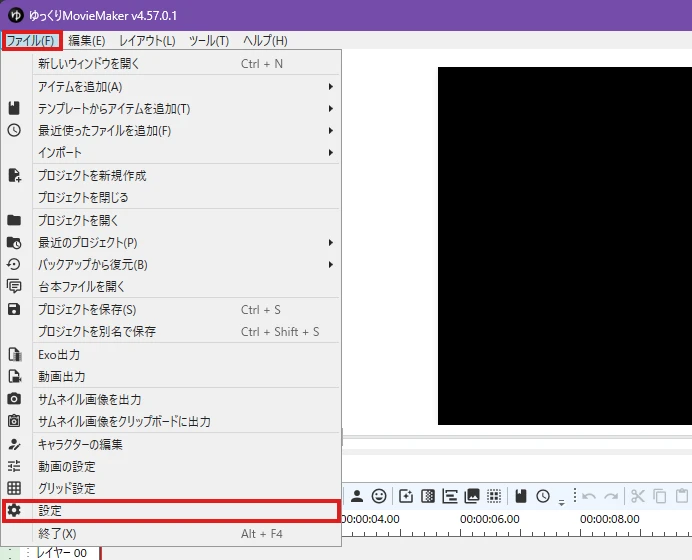
The language setting is in the Settings window. While the interface is still in Japanese, follow the red boxes:
- Open the first menu, 「ファイル(F)」 (File), and click 「設定」 (Settings). It has a gear icon and sits just above the last entry, 「終了(X)」 (Exit).
- The Settings window opens on its first page, 「全般」 (General). The fourth row from the top is 「言語(要再起動)」 (Language, restart required). Open the drop-down and choose English.
- Close YMM4 and start it again. The setting takes effect after the restart.
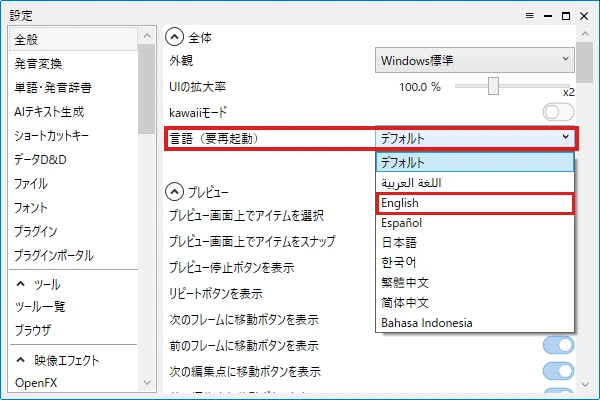
In v4.57.0.1 the drop-down offers 「デフォルト」 (Default), Arabic, English, Spanish, Japanese, Korean, Traditional Chinese, Simplified Chinese, and Indonesian. On my PC, which runs Japanese Windows, Default gave me the Japanese interface. I have not tested YMM4 on an English-language Windows, so I cannot say what Default shows there.
To switch back later, go to File → Settings → General → Language (restart required).
What stays in Japanese
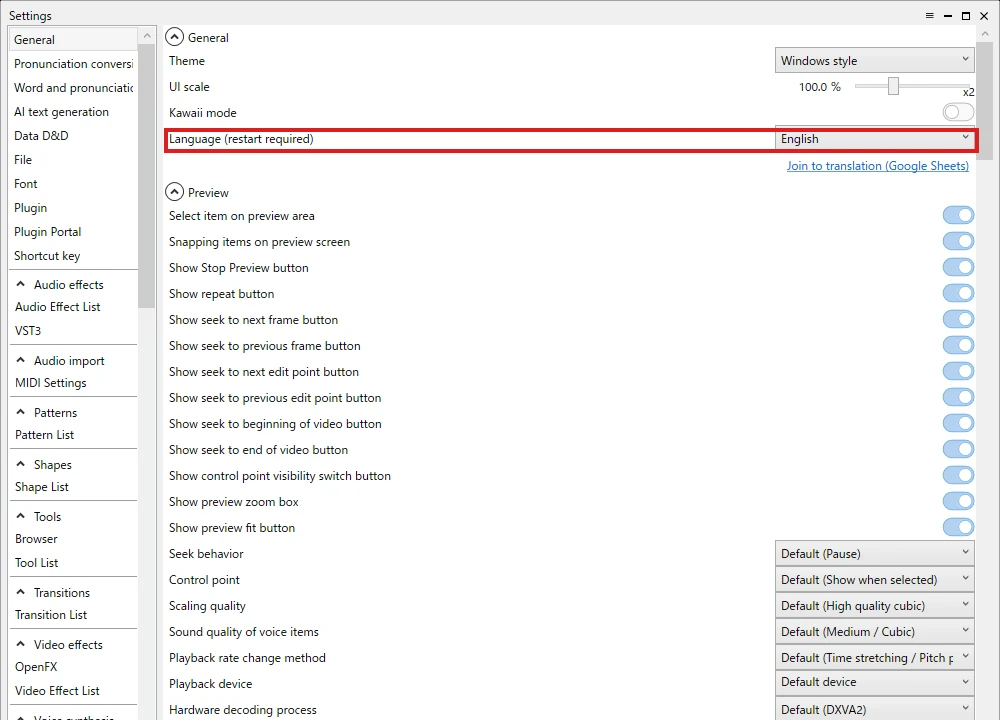
After the switch, the menus, the toolbars, the item panel, the Settings window, Character settings, the export window, and the names of the effects were all in English. These were the exceptions I found:
- The names of the built-in characters and their voices, such as ゆっくり霊夢 (Yukkuri Reimu) and AquesTalk’s 女性1 (“Female 1”). These are data, not interface labels, and you can rename characters in Character settings.
- One entry in the Tools menu, MCP連携サーバー (“MCP integration server”). Two more are shown in both languages: Browser / ブラウザ and Notepad / メモ帳.
- One speech engine in the Settings list, よみてれる (a product name).
- The buttons of the “Do you want to save it?” dialog: はい(Y) is Yes, いいえ(N) is No, and キャンセル is Cancel. The message itself was in English. These buttons probably follow the language of Windows rather than YMM4.
- The official documentation (FAQ) and the release notes.
The English interface is a community translation — the Settings window has a Join to translation (Google Sheets) link — so a few labels are rough. For example, the Edit menu has “Swith control point visibility” and a lowercase “redo”, and under Align selected items the entry “Align items to left” appears twice; the second one (third in the list) is “align to right” in the Japanese interface. Some names also differ from the usual video-editing terms. I list those in the term table near the end.
Start here: my YMM4 articles in English
- How to Install and Use YukkuriMovieMaker4 (YMM4): downloading, first launch, making a character speak, and setting up lip-syncing character art. It also covers which edition to choose and the license terms.
- YMM4 Export Settings: Why the File Is Huge and Which Bitrate to Use: the export window explained, with file sizes and quality measured for each setting.
- Preview stutter and variable-frame-rate (VFR) audio drift, retested (Japanese only for now): on the current version, video items no longer freeze the preview, and editing VFR footage as is produced no drift in the exported video.
Those two English articles were written with the Japanese interface: they show each Japanese label followed by English in parentheses. The steps are the same in the English interface; use the tables below to match the names.
Reading the official documentation: the official FAQ is a set of short Japanese pages, and your browser’s page translation handles the text well. The screenshots in it show the Japanese interface, which is where the “In Japanese” column of the tables below helps.
The main window
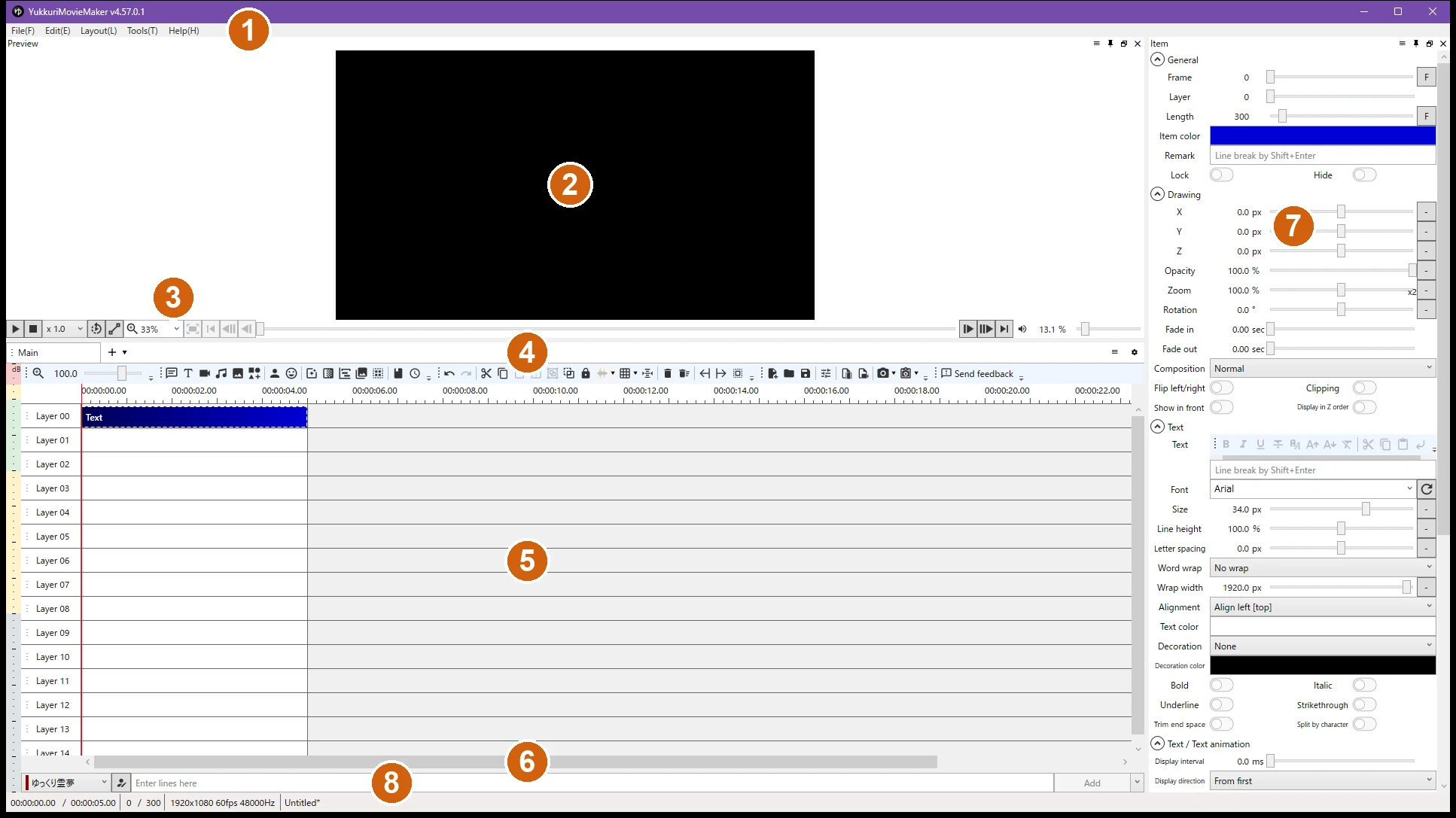
| # | Area | In English | In Japanese | What it is |
|---|---|---|---|---|
| 1 | Menu bar | File / Edit / Layout / Tools / Help | ファイル / 編集 / レイアウト / ツール / ヘルプ | |
| 2 | Preview | Preview | プレビュー | Shows the current frame of the video |
| 3 | Playback controls | — | — | Play/pause, stop, playback rate, repeat, preview zoom, frame-by-frame buttons, seek bar, volume |
| 4 | Timeline toolbar | — | — | Buttons to add each type of item, plus editing, file, and export buttons |
| 5 | Timeline | Layer 00, 01, … | レイヤー 00, 01, … | Items are placed on layers. The tab above it (Main) is the scene |
| 6 | Dialogue input | Enter lines here / Add | ここにセリフを入力 / 追加 | Pick a character, type a line, and click Add to create a voice item |
| 7 | Item panel | Item | アイテム | Settings for the selected item. Shows “No item is selected” when nothing is selected |
| 8 | Status bar | — | — | Current time / total time, current frame / total frames, video size and frame rate (click it to open Video settings), project name |
The menus
These are the menu items you are most likely to need. The letters in parentheses on screen, such as File(F), are access keys.
File
| In English | In Japanese | What it does | More |
|---|---|---|---|
| Add item | アイテムを追加 | Adds an item of the chosen type (see the item types below) | |
| Add items from template | テンプレートからアイテムを追加 | Adds items you saved as a template | |
| Import | インポート | Imports a subtitle file as text items or voice items | Official docs |
| Create new project / Open project / Close project | プロジェクトを新規作成 / 開く / 閉じる | Projects are saved as .ymmp files | |
| Recent projects | 最近のプロジェクト | ||
| Restore from backup | バックアップから復元 | Opens one of the automatic backups | |
| Open scenario file | 台本ファイルを開く | Creates voice items from a script file | Official docs |
| Save Project / Save project as | プロジェクトを保存 / 別名で保存 | Ctrl+S / Ctrl+Shift+S | |
| Exo output | Exo出力 | Exports an .exo file for AviUtl, another Japanese video editor. Not needed if you export from YMM4 | Official docs |
| Video output | 動画出力 | Opens the export window | My article |
| Output thumbnail image | サムネイル画像を出力 | Saves the current frame as an image (there is also a “to clipboard” version) | |
| Edit character | キャラクターの編集 | Opens Character settings: voice, subtitles, and character art for each character | My article |
| Video settings | 動画の設定 | Resolution, frame rate, and audio sampling rate of the project | My article |
| Grid settings | グリッド設定 | Not tested | |
| Settings | 設定 | YMM4’s own settings (see below) | |
| Exit | 終了 |
Edit
Below Undo and redo, the Edit menu has four submenus: Preview, Item, Voice operation, and Timeline. The most useful entries and their shortcut keys:
| In English | In Japanese | Shortcut |
|---|---|---|
| Undo / redo | 元に戻す / やり直し | Ctrl+Z / Ctrl+Shift+Z |
| Play/Pause | 再生/一時停止 | Space |
| Seek to next frame / Seek to previous frame | 次のフレームへ移動 / 前のフレームへ移動 | Right / Left |
| Seek to next edit point / Seek to previous edit point | 次の編集点へ移動 / 前の編集点へ移動 | Ctrl+Right / Ctrl+Left |
| Seek to beginning of video / Seek to end of video | 動画の先頭に移動 / 動画の末尾に移動 | Home / End |
| Cut / Copy / Paste | 切り取り / コピー / 貼り付け | Ctrl+X / Ctrl+C / Ctrl+V |
| Delete | 削除 | Delete |
| Delete and left-align (ripple delete) | 削除して左寄せ(消して後ろを詰める) | Shift+Delete |
| Split by playback position | 再生位置で分割 | Ctrl+B |
| Select all | すべて選択 | Ctrl+A |
| Select all items on left / Select all items on right | 左のアイテムをすべて選択 / 右のアイテムをすべて選択 | Ctrl+Shift+Left / Ctrl+Shift+Right |
| Grouping / Ungrouping | グループ化 / グループを解除 | Ctrl+G / Ctrl+Shift+G |
| Show waveform / Hide waveform | 波形を表示 / 波形を非表示 | Ctrl+W / Ctrl+Shift+W |
| Add key frame at current frame | 現在の再生位置に中間点を追加 | — |
| Change character (for the dialogue input) | キャラクターを変更(セリフの入力欄のキャラクター) | Ctrl+D |
| Create a new scene | 新しいシーンを作成 | — |
A key frame is called 中間点 (literally “midpoint”) in Japanese: a point inside an item where an animated value changes. See the official docs page on animation (Japanese). If Space does not start playback, the official docs have a fix (Japanese).
Layout, Tools, and Help
| In English | In Japanese | What it does |
|---|---|---|
| Layout → Reset layout | レイアウト → レイアウトをリセット | Puts the panels back where they were. Useful if you close or lose a panel |
| Layout → Reset UI scale to 100% | レイアウト → UIの拡大率を100%にリセット | |
| Tools → Scenario editor | ツール → 台本編集 | Not tested |
| Tools → Templates | ツール → テンプレート | Panel for saved item templates |
| Tools → Search | ツール → 検索 | Not tested |
| Tools → List of resources | ツール → 使用素材一覧 | Not tested |
| Tools → Basic → Item / Preview | ツール → 基本 → アイテム / プレビュー | Shows or hides the item panel and the preview. Use these if one of them disappears |
| Tools → Voice → Recording / Volume analyzer / Transcription / Word and pronunciation dictionary | ツール → 音声 → 録音 / 音量解析 / 文字起こし / 単語・発音辞書 | Not tested, except that the dictionary is described in the official docs |
| Tools → Character illustrations → Psd standing picture material manager / Moving standing picture material manager | ツール → 立ち絵 → Psd立ち絵素材マネージャー / 動く立ち絵素材マネージャー | Tools for checking and editing character art assets. My article |
| Tools → Utilities → Plugin Portal | ツール → ユーティリティ → プラグインポータル | Not tested. Plugins are covered in the official docs |
| Tools → Settings → Character settings / Settings | ツール → 設定 → キャラクター設定 / 設定 | Shows or hides the same two windows that the File menu opens |
| Help → Change YMM4 version | ヘルプ → YMM4のバージョンを変更する | Not tested |
| Help → Associate YMM4 extensions | ヘルプ → YMM4用拡張子の関連付け | Registers or removes the file associations for YMM4 |
| Help → FAQ | ヘルプ → よくある質問 | Opens the official documentation (Japanese) |
| Help → About YukkuriMovieMaker | ヘルプ → ゆっくりMovieMakerについて | Version and release notes |
| Help → Other → Open user folder | ヘルプ → その他 → ユーザーフォルダを開く | Opens the folder where settings and backups are stored |
The 13 item types
Everything on the timeline is an item. You add items from the toolbar above the timeline or from File → Add item. They appear in this order:
| In English | In Japanese | What it does | More |
|---|---|---|---|
| Voice item | ボイスアイテム | A line of dialogue: synthesized voice, subtitle, and the character’s expression for that line. This is what the dialogue input creates | My article |
| Text item | テキストアイテム | On-screen text | Official docs: text control tags |
| Video item | 動画アイテム | A video file | My article (Japanese) |
| Audio item | 音声アイテム | An audio file (music, sound effects) | |
| Image item | 画像アイテム | An image file | |
| Shape Item | 図形アイテム | A generated shape: background, circle, polygon, star, arrow, line, and more | |
| Standing picture item | 立ち絵アイテム | Shows a character on screen. Its mouth and eyes follow the voice items | My article |
| Standing picture expression item | 表情アイテム | Changes a character’s expression for a stretch of the timeline | Official docs |
| Effect item | エフェクトアイテム | Applies video effects to an area of the screen rather than to one item | Official docs |
| Scene change item | 場面切り替えアイテム | A transition between scenes: cross fade, slide, page turn, and so on (21 kinds) | |
| Scene item | シーンアイテム | Places another scene of the project on the timeline as one item | |
| Screen duplicates item | 画面の複製 | Judging by the name, shows a copy of the rendered screen (not tested) | |
| Group control item | グループ制御 | Has a “Control target” section and applies its position and effects to other items (not tested in detail) |
The item panel
When you select an item, the item panel on the right shows its settings in collapsible sections. The first sections are the same for most item types.
General and Drawing
| In English | In Japanese | Notes |
|---|---|---|
| Frame | フレーム | The frame where the item starts |
| Layer | レイヤー | The layer the item is on |
| Length | 長さ | In frames |
| Item color | アイテムの色 | The color of the item on the timeline |
| Remark | 備考 | A free-text memo |
| Lock | ロック | On/off switch |
| Hide | 非表示 | On/off switch |
| X / Y / Z | X / Y / Z | Position |
| Opacity | 不透明度 | In percent |
| Zoom | 拡大率 | Scale. 100 = original size |
| Rotation | 回転角 | In degrees |
| Fade in / Fade out | フェードイン / フェードアウト | In seconds |
| Composition | 合成モード | Blend mode |
| Flip left/right | 左右反転 | On/off switch |
| Clipping | クリッピング | Clips the item with the item above it |
| Show in front / Display in Z order | 手前に表示 / Z値順に表示 | On/off switches |
| Effects | 映像エフェクト | Video effects. Click + to add one. Official docs |
| Audio effects | 音声エフェクト | On items that have sound |
| Other → Save as default | その他 → デフォルトに設定 | Judging by the name, makes the current values the defaults for new items of this type (not tested) |
Sections for each item type
| Item | Section | Fields (English ← Japanese) |
|---|---|---|
| Voice item | Voice (ボイス) | Character ← キャラクター; Lines ← セリフ; Pronunciation ← 発音 (how the voice reads the line); Volume ← 音量; Pan ← パン; Pitch ← 音程 / 再生速度; Reading speed ← 読み上げ速度; Lingering after lines ← セリフ後の余韻 (the pause after the line) |
| Voice item | Subtitle (字幕) | Subtitle settings ← 字幕の設定 |
| Voice item, Standing picture expression item | Standing picture / Expression (立ち絵 / 表情) | Expression ← 表情; Eyebrows ← 眉; Eye ← 目; Mouth ← 口; Hair ← 髪; Complexion ← 顔色; Body ← 体; Back 1–3 ← 後1–3; Other 1–3 ← 他1–3; Blink ← まばたき; Lip-synch ← 口パク |
| Standing picture item | Standing picture (立ち絵) | The same parts, plus Display only when speaking ← 喋る時のみ表示; Composite face parts in layers ← 表情を差分合成 |
| Text item | Text (テキスト) | Font ← フォント; Size ← サイズ; Line height ← 行の高さ; Letter spacing ← 文字間隔; Word wrap ← 折り返し; Alignment ← 文字揃え; Text color ← 文字色; Decoration ← 装飾 (outline and so on); Bold ← 太字; Italic ← イタリック; Underline ← 下線; Strikethrough ← 打ち消し線 |
| Text item | Text / Text animation (テキストアニメーション) | Display interval ← 表示間隔; Display direction ← 表示方向. Official docs: showing text one character at a time |
| Shape Item | Shape (図形) | Type ← 種類; Size ← サイズ; Aspect ratio ← 縦横比; Thickness ← 線の太さ; Corner radius ← 角丸半径; Pattern of shape ← 図形の模様 (the fill) |
| Scene change item | Scene change (場面切り替え) | Type ← 種類; Move direction ← 移動方向; Easing type ← 緩急; Easing mode ← 加減速 |
| Video item | Video (動画) | File ← ファイル; Audio track ← 音声トラック; Volume ← 音量; Playback speed ← 再生速度; Position ← 再生開始位置 (where in the file to start); Loop ← ループ再生. Official docs: fast-forward and reverse. I did not add a video item while the interface was in English; these names come from the scene item, which has the same fields, and from YMM4’s own English language files |
| Items with sound | Echo (エコー) | Enable ← 有効; Interval ← 間隔; Attenuation ← 減衰 |
Character settings
Open it from File → Edit character, or with the button next to the character drop-down below the timeline. Each character has sections for General, Voice, Echo, Custom voice, Audio effects, Subtitle, and Standing picture.
| In English | In Japanese | Notes |
|---|---|---|
| Name / Group | 名前 / グループ | Free text. The built-in characters have Japanese names; you can rename them |
| Voice | 声質 | Which voice the character uses. Voices from other text-to-speech engines appear here once the engine is set up |
| Custom voice | カスタムボイス | Has a monitor folder and file-name fields; judging by the names, picks up audio files you recorded yourself (not tested) |
| Subtitle → Show subtitles | 字幕 → 字幕を表示する | Subtitle position, font, and decoration for this character |
| Standing picture → Type: Never show / Simple standing picture / Moving standing picture / PSD files | 立ち絵 → 種類:表示しない / シンプル立ち絵 / 動く立ち絵 / PSDファイル | The type of character art. My article walks through the moving (animated) type. I did not open this drop-down in English; the names of the types come from YMM4’s English language files |
| Material location | 素材の場所 | The folder that holds the character art |
Settings
Open it from File → Settings. The list on the left has ten pages followed by groups. In English the groups are sorted alphabetically, so their order differs from the Japanese interface.
| In English | In Japanese | What is inside |
|---|---|---|
| General | 全般 | Most of YMM4’s own options: theme, UI scale, language, the preview options (seek behavior, scaling quality, hardware decoding), the timeline, backups, and output options |
| Pronunciation conversion | 発音変換 | How Japanese text is converted to readings |
| Word and pronunciation dictionary | 単語・発音辞書 | Register how words should be read. Official docs |
| AI text generation | AIテキスト生成 | Lets an AI suggest the next line. Official docs |
| Shortcut key | ショートカットキー | A searchable table of every command; you can assign your own keys |
| Data D&D | データD&D | Not tested |
| File | ファイル | Which file extensions are treated as video, audio, and so on |
| Font | フォント | System fonts and custom fonts; hide, favorite, or group them |
| Plugin | プラグイン | The plugin list, and the priority of the plugins that read video, audio, and image files |
| Plugin Portal | プラグインポータル | Not tested |
| Tools | ツール | Tool List; the built-in Browser |
| Video effects | 映像エフェクト | OpenFX plugins; Video Effect List (every video effect and its category) |
| Audio effects | 音声エフェクト | VST3 plugins; Audio Effect List |
| Voice synthesis | 音声合成 | One entry per text-to-speech engine: AquesTalk, A.I.VOICE, CeVIO, CoeFont, COEIROINK, VOICEPEAK, VOICEVOX, cloud services such as Amazon Polly, Google Cloud, Microsoft Azure, OpenAI, ElevenLabs, and more |
| Audio import | 音声読み込み | MIDI Settings |
| Transitions / Shapes / Patterns | 場面切り替え / 図形 / 模様 | Lists of the 21 transitions, 22 shapes, and 22 fill patterns |
| Other → Developer mode | その他 → 開発者モード | Not tested |
The AquesTalk page has a Licenses section (ライセンス) that shows which AquesTalk libraries are installed. That matters for commercial use; see the license note in my install guide.
Effects at a glance
YMM4 v4.57.0.1 lists 187 video effects and 41 audio effects. The video effects are sorted into these categories:
| In English | In Japanese | Count | Examples |
|---|---|---|---|
| Animation | アニメーション | 25 | Bounce (跳ねる), Waving (波打ち), Random move (ランダム移動), Scale According to Volume (音量に合わせて拡大縮小) |
| Camera | カメラ | 6 | Camera position (カメラ位置), Camera Shake (手ぶれカメラ) |
| Processing | 加工 | 63 | Blur (ぼかし), Mosaic (モザイク), Sepia (セピア), Noise (ノイズ), Apply LUT (LUT適用) |
| Composite | 合成 | 11 | Chroma key (クロマキー), Luminance Key (ルミナンスキー), Clipping (クリッピング) |
| Decoration | 装飾 | 25 | Outline (縁取り), Shadow (影), Frame (枠線) |
| Appearance and Exit | 登場退場 | 22 | Fade in and out (フェードイン・アウト), Appearing and exiting while moving (移動しながら登場退場) |
| Layout | 配置 | 9 | Circular arrangement (円形配置), Tiling (敷き詰め) |
| Drawing | 描画 | 21 | 3D rotation (3D回転), Scaling (拡大縮小), Opacity (不透明度) |
| Branch | 分岐 | 5 | Composite with Branch (分岐と合成) |
I saw the first two category names, Animation and Appearance and Exit, in the English interface. The other category names and the example names are taken from YMM4’s own English language files, so the capitalization on screen may differ slightly.
Audio effects come in three groups in the Japanese interface: エフェクト (Effects, 30) such as Echo (エコー), Compressor (コンプレッサー), Limiter (リミッター), and Noise reduction (ノイズ除去); フィルター (Filter, 8) such as Equalizer (イコライザー) and Low Pass filter (ローパスフィルタ); and 基本 (Basic, 3): Pan (パン), Volume (音量), and Volume (dB). If an effect seems to do nothing, see this official docs page (Japanese).
The official documentation, section by section
Here are the pages of the FAQ on the developer’s site that I expect English-speaking users to need most, by section. All links go to Japanese pages.
English labels that differ from the usual terms, and Japanese words worth knowing
Some labels in YMM4’s English interface are literal translations. If you follow a general video-editing tutorial, or a Japanese YMM4 tutorial through machine translation, this table helps you match the words.
| In YMM4 (English) | In Japanese | What it means |
|---|---|---|
| Standing picture | 立ち絵 (tachie) | Character art shown on screen while the character talks. The Tools menu calls the same thing “Character illustrations” |
| Moving standing picture | 動く立ち絵 | Animated character art: the mouth and eyes move with the voice |
| Lines | セリフ (serifu) | A line of dialogue. The settings call the dialogue input the “serif input field” |
| Key frame | 中間点 | Literally “midpoint”. Machine translation of Japanese tutorials often says “intermediate point” |
| Scene change | 場面切り替え | A transition. The Settings list calls the same thing “Transitions” |
| Scenario | 台本 (daihon) | A script |
| Resources / Material | 素材 (sozai) | Assets: character art, images, sound effects, and music shared by creators, each with its own terms of use |
| Remark | 備考 | A free-text note on an item or a character |
| Zoom (in the item panel) | 拡大率 | Scale |
| Composition | 合成モード | Blend mode |
| Lip-synch / Blink | 口パク / まばたき | Lip-sync and blinking of character art |
| Delete and left-align | 削除して左寄せ | Ripple delete: deletes the item and closes the gap |
| Video output / Exo output | 動画出力 / Exo出力 | Export a video / export an .exo file for AviUtl |
| Output content ID list (.txt) | 親作品ID一覧(.txt)を生成する | Writes the IDs of the “parent works” (see Niconico below) used in the project |
| Kawaii mode | kawaiiモード | A switch on the General page of Settings. Not tested |
| Japanese term | What it means |
|---|---|
| ゆっくり (Yukkuri) | Round-headed characters based on Reimu and Marisa from the Touhou Project, and by extension the genre of videos they narrate. The classic greeting is ゆっくりしていってね (“Take it easy!”) |
| ゆっくりボイス (Yukkuri voice) | The flat synthesized voice of those videos, produced by a speech library called AquesTalk |
| 解説 / 実況 (kaisetsu / jikkyō) | The two main kinds of Yukkuri video: explainers, and commentary over gameplay footage |
| ニコニコ動画・親作品 (Niconico, parent works) | Niconico is a Japanese video site. Creators there register the software and assets they used as “parent works” of their video. YMM4’s export window can write the list of IDs for you |
| AviUtl | Another free Japanese video editor. Older versions of YMM4 could not export video by themselves and handed the project to AviUtl; current versions export on their own |
Licenses matter more than usual with YMM4, because the bundled Yukkuri voice (AquesTalk) and most character art have their own terms, especially for monetized videos. I summarize the terms I checked, with links to the originals, in the install guide. Always read the original terms yourself.
Summary
- YMM4 has an English interface: open the first menu, choose the entry with the gear icon, set the fourth row of the first page to English, and restart
- Almost everything is translated. Character and voice names, a few tool names, and the official documentation stay in Japanese
- For getting started, see the install guide; for exporting, see the export settings article
- The English labels here are the ones YMM4 v4.57.0.1 shows. I will add to this page as I test more features, starting with the ones the official documentation does not explain
I used Claude (an AI) to help research and organize the information on this page.